


This is my experience. In 2018, I created a content website, but because the loading speed was too slow, I lost all the AdSense revenue I had earned.
At the time, that site had an average monthly page view of 500,000, but AdSense revenue just wouldn't go up. At first, we thought it was a content or topic issue, but then we tested it with PageSpeed and found that the homepage load time was 8.7 seconds. 8.7 seconds! By then, all the users would have left, and the ads wouldn't even have a chance to finish displaying.
What is the problem?
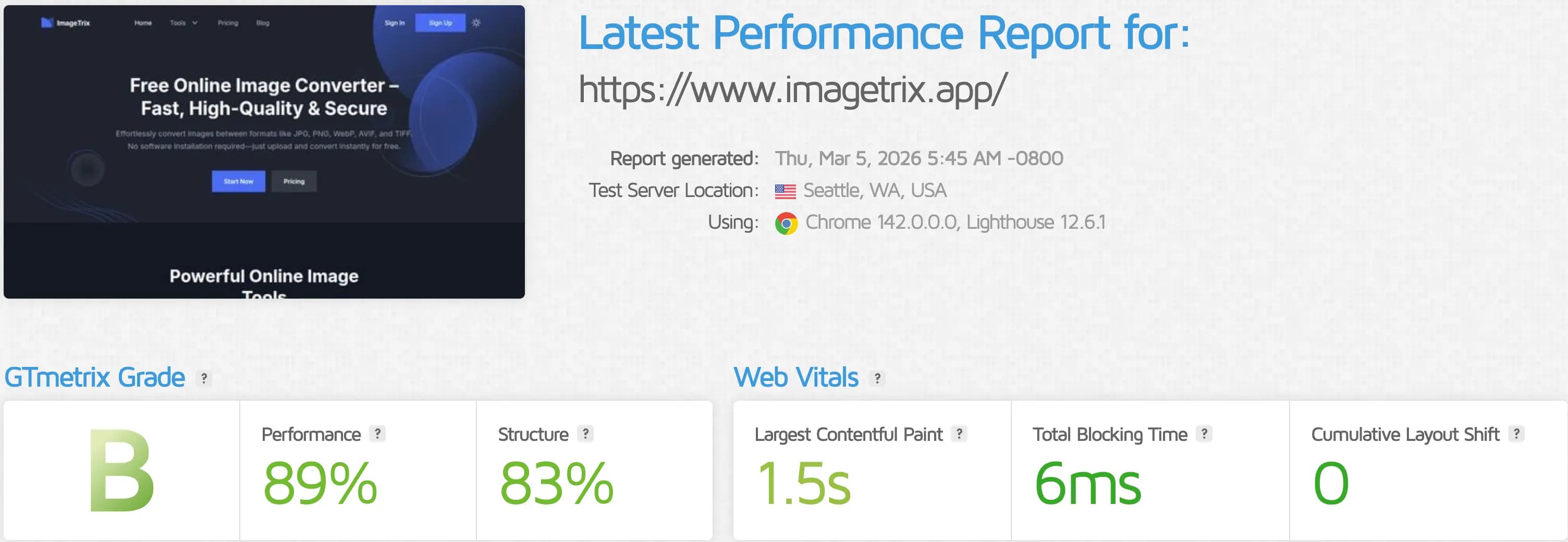
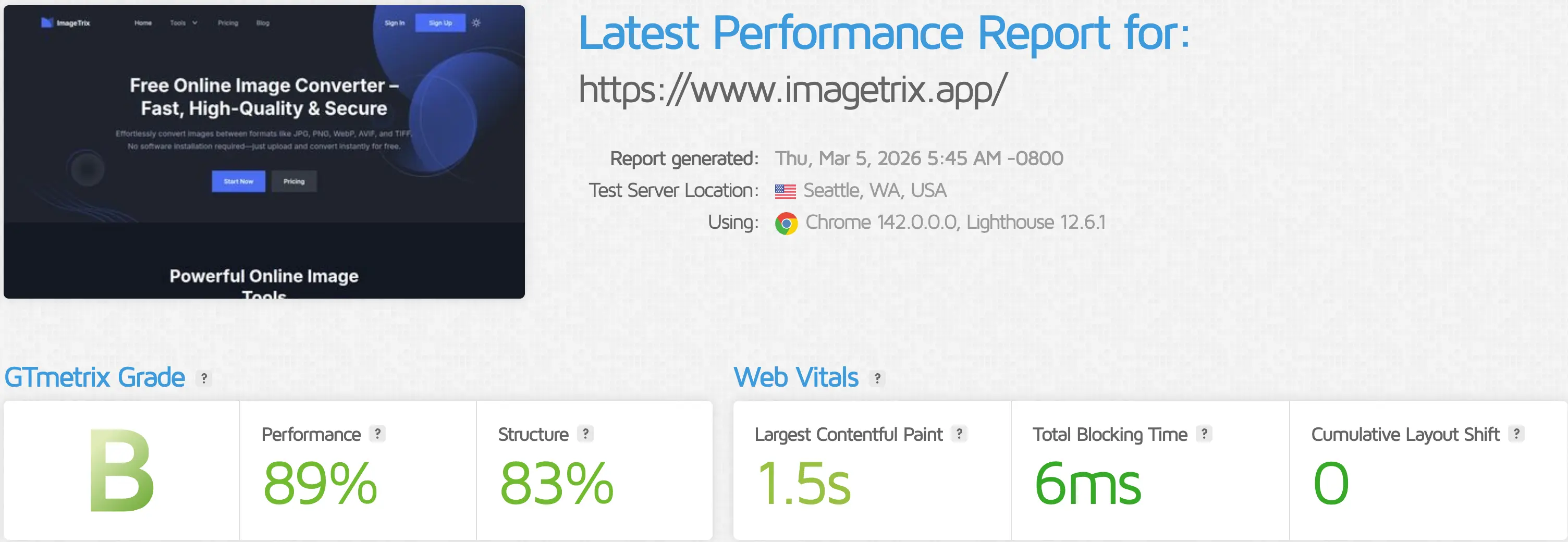
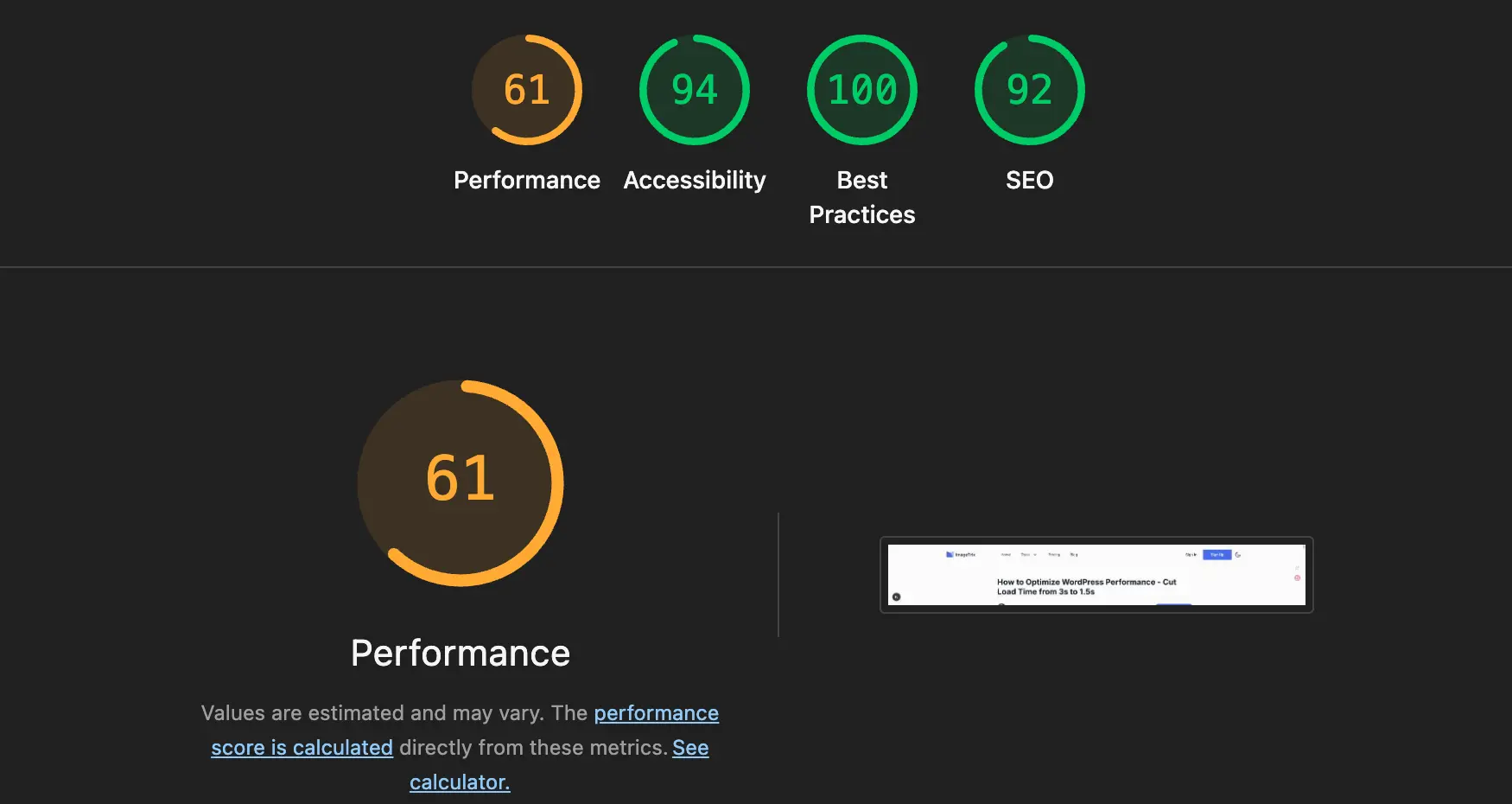
Many people immediately start installing plugins and setting up CDNs, which is a classic case of taking the wrong medicine for the wrong problem. You need to test first. My go-to tools are GTmetrix and Google PageSpeed Insights. I test with both, look at the issues highlighted in red in the reports, and start addressing the most serious ones. Also, you must test both desktop and mobile versions simultaneously. Mobile scores are usually much lower than desktop scores, and Google now prioritizes mobile indexing, so mobile performance directly impacts rankings. I've seen many website owners whose desktop speeds are good, but their mobile speeds take 4-5 seconds, and their search rankings just won't improve—and this is the reason.
Hosts and servers
This is the most fundamental issue, and it's also the one that many people tend to overlook.
In 2019, to save money, I used shared hosting for all my image websites. As a result, the server crashed during peak periods. During that time, the daily IP of the image websites exceeded 10,000, but the TTFB (Time to First Byte) could reach more than 2 seconds. After switching to VPS, the TTFB dropped to less than 200ms.
Specific suggestions
If your site is still using shared hosting, you can refer to my solution. I currently use Hostinger, Vultr, and Cloudways most often, all of which have good stability. Hostinger is beginner-friendly, abstracting away the server configuration for you; you can use it directly. Choose a server region close to your target users. The PHP version must be 8.0 or higher; many older sites are still running PHP 7.2 or even 7.0, resulting in significant performance loss. There's no reason to delay upgrading PHP; it's a free performance boost.
Image optimization
The poor performance of most WordPress websites can be attributed to images in 70% of cases. Many people casually upload 5MB JPG images, which is disastrous for performance optimization.
Format conversion
The poor performance of most WordPress websites can be attributed to images in 70% of cases. Many people casually upload 5MB JPG images, which is disastrous for performance optimization. After migrating my content site to WebP, the total page size decreased from 4.2MB to 1.8MB, and the loading time was almost 1 second faster. If you haven't switched yet, try our free PNG to WebP Converter to get started in seconds.
Lazy loading
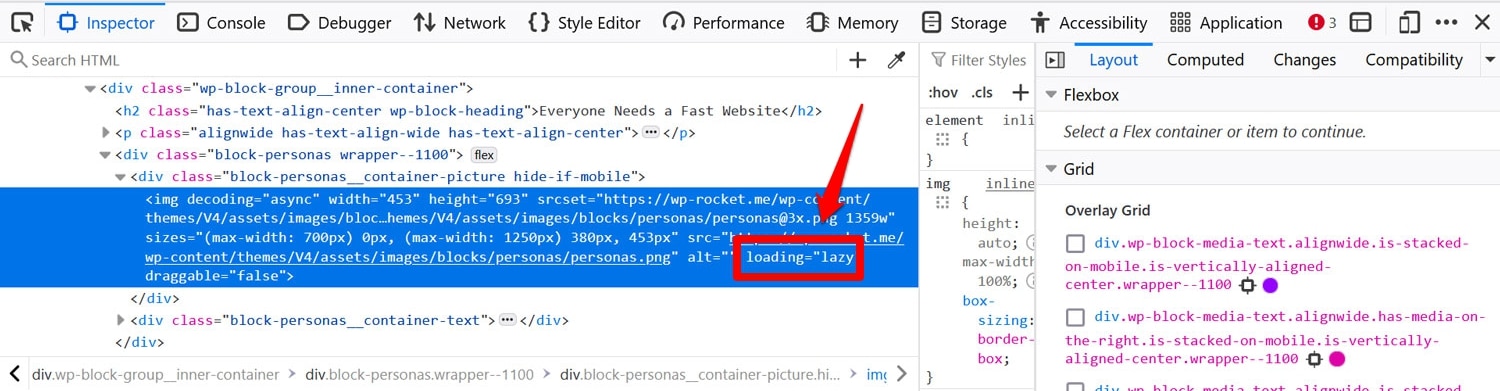
Lazy loading of images is now natively supported in WordPress, but it sometimes fails. It's recommended to use Lazy Load by WP Rocket or the entire WP Rocket solution. The core logic of lazy loading is: images not visible to the user are not loaded initially, but only when the user scrolls to that position. This operation significantly improves the initial page load speed.
Size Specifications
Compress images before uploading. Images in articles should not exceed 1200px in width, and file sizes should be under 200KB. You can use image compression tools; it's free and effective.
Cache configuration
If you do this well, your speed will see a qualitative leap.
Simply put, caching is about pre-storing dynamically generated pages as static files, so that when a user accesses the page, the static file is returned directly, without having to run PHP and query the database every time.
My current standard setup is WP Rocket, a paid service costing $59 a year, but it's worth it. It integrates page caching, browser caching, code minification, lazy loading, and preloading, making it extremely user-friendly for beginners. After installation, you can see noticeable results by simply enabling it with the default settings.
If you have a limited budget, the free options are W3 Total Cache or LiteSpeed Cache (LiteSpeed Cache works very well if your hosting supports LiteSpeed servers).
One thing to note: the shopping cart and checkout pages for WooCommerce sites cannot be cached, as this will cause problems. These pages should be excluded from caching in your caching plugin.
CDN acceleration
CDN distributes your static resources (images, CSS, JS) to servers around the world. When a user accesses the site, the resource is retrieved from the node closest to them, instead of going to your origin server every time.
My entire website network is connected to a CDN, with Cloudflare being the most commonly used; the free version is sufficient. The integration process is very simple: change the NS resolution of the domains to Cloudflare, then enable proxy mode; it generally takes about ten minutes to set up.
Besides CDN, Cloudflare offers a host of additional benefits: DDoS protection, SSL certificates, anti-crawler rules, etc. It is extremely cost-effective for SEO-focused website networks, and the free version can meet 80% of the needs.
For a more advanced setup, use BunnyCDN. It's very cheap, billed by traffic, and has better coverage of Asian nodes than Cloudflare.
Code-level optimization
This part has a slightly technical barrier to entry, but it's all something anyone can do.
Remove unused plugins and themes
Many people install dozens of WordPress plugins, but only a dozen or so are actually used; the rest are just a burden. Each plugin loads extra CSS and JS, directly impacting speed.
Regularly review plugins and delete those you don't use—not disable them, but delete them. Disabled plugin code still exists, and some themes may still load resources from disabled plugins.
CSS/JS minification and merging
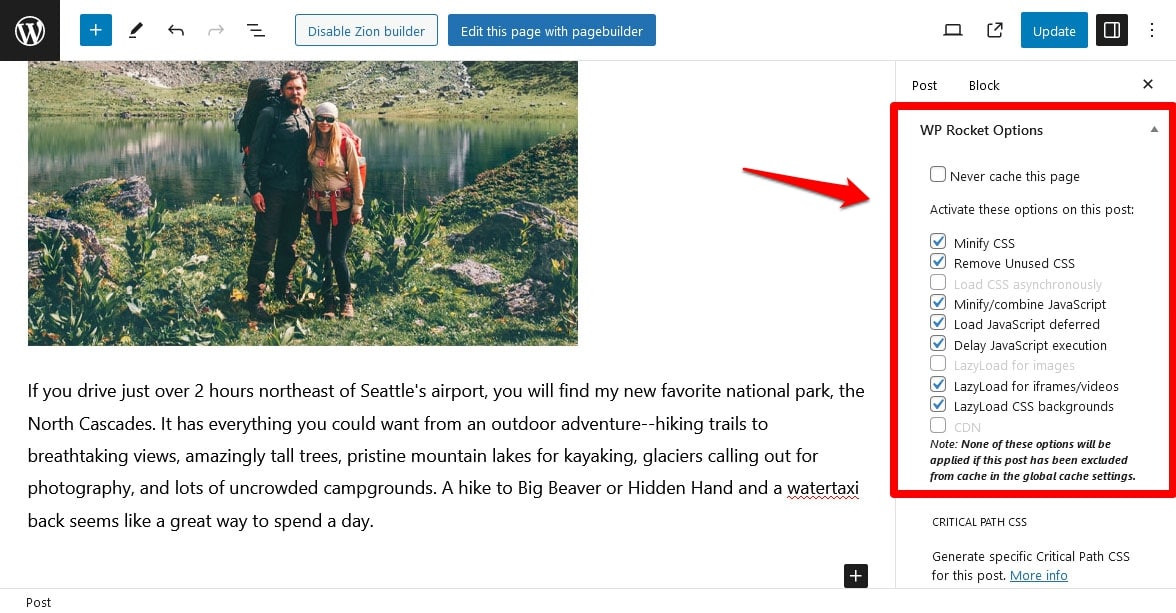
The WP Rocket or Optimize plugin can automatically compress and merge CSS and JS files, reducing the number of HTTP requests.
However, there's a problem: merging JS can sometimes cause certain functions to malfunction, requiring individual testing to troubleshoot. My usual approach is to enable compression, be cautious when merging, and only investigate if problems arise.
Reduce rendering blocking resources
Google PageSpeed reports often mention "eliminating rendering-blocking resources," referring to certain JS and CSS files that can block page rendering.
The solution is to set non-critical JS to be loaded asynchronously (async/defer). WP Rocket has this option called "Delay JavaScript execution", and enabling it usually increases your score significantly.
Database optimization
This is often overlooked, but as a website operates for a longer period of time, database garbage will accumulate more and more, directly slowing down query speed.
WordPress databases accumulate a large number of post revisions, spam comments, outdated transient data, and so on. I have a content site that I've been running for 6 years, and before cleaning up the database, it had over 40,000 revision records. After cleaning it up, the database query speed increased by nearly 30%.
Recommended plugin: WP-Optimize, free, can clean up various database junk files with one click, and can also be set to clean up automatically on a regular basis.
Additionally, if your hosting provider supports Redis, you can configure Redis object caching for WordPress, which is very effective for sites that frequently query the database.
Actual result: from 8.7 seconds to 1.8 seconds
Returning to the site mentioned at the beginning, in 2018 it loaded in 8.7 seconds after following the above process:
After switching to a VPS (Cloudways, 2C/2G), TTFB dropped from 2.1 seconds to 0.18 seconds; all images on the site were converted to WebP and compressed, reducing file size by 58%; WP Rocket was installed with full page caching enabled; Cloudflare CDN was integrated; the database was cleaned up, and more than 30 unused plugins were deleted.
The final result was a homepage load time of 1.8 seconds, and a Google PageSpeed mobile score that rose from 31 to 95.
Conclusion
There is no end to performance optimization; it is a continuous process of iteration. Performance optimization, content quality, and external link building are complementary and should not be neglected. I've seen many websites achieve maximum speed but have terrible content, yet their rankings still don't improve; I've also seen websites with excellent content but poor speed, wasting the value of their content.